![2BTech_FavIcon-WHITE-OUTLINE.png]](https://kb.2btech.io/hs-fs/hubfs/2BTech_FavIcon-WHITE-OUTLINE.png?height=1412&name=2BTech_FavIcon-WHITE-OUTLINE.png)
Technical Note No. 064
AQSync Port Assigner instructions
Date: November 21, 2024
Author: Lupita Ortega
Summary:
This procedure shows how to navigate to the port assigner and how to assign all USB
hubs. This procedure can be necessary if the software has been updated for the
devices to output to the touchscreen.
Please contact support@2btech.io for further questions or support regarding this
procedure.
Procedure:
1. Navigate to the port assigner menu.
i) Menu > enter unique password > System > Port Assigner
(1) To locate the password, navigate to the menu and press "Enter" on the
existing password. Then, go to the "WiFi Access Point" option in the
System menu. There, you'll find the 9-digit password. Be sure to note it
down, then close out of all menus to return to the main page.
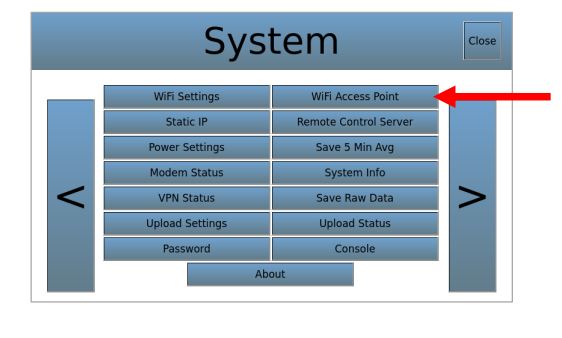
2. At the main page, hit menu and enter the password you recorded previously.
3. Navigate to the port assigner by going to System > Port Assigner
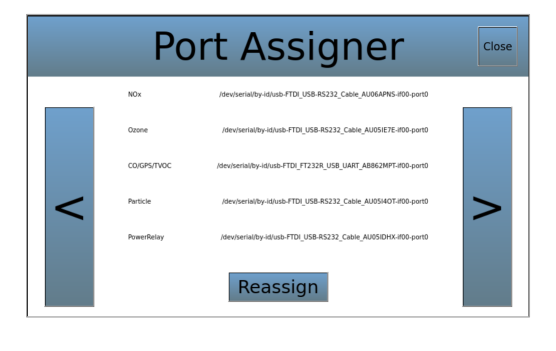
4. In Port assigner, hit “Reassign”. There will be a pop-up window that says “For
Admin use only”. Hit OK.
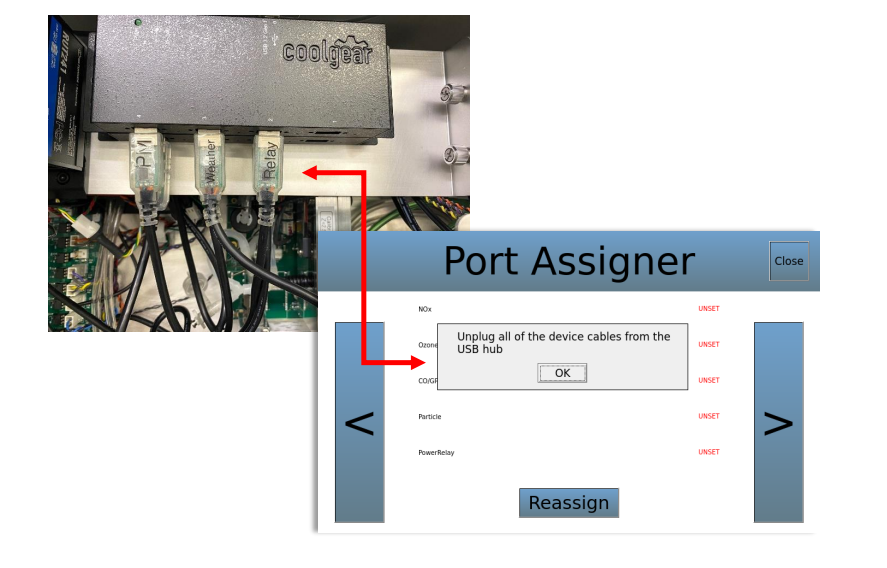
5. Another pop-up up window will say to unplug all of the devices from the USB hub.
Unplug all the devices and hit OK.
6. Pop ups will start to appear for each device. Plug the USB back into the USB hub
making sure you are plugging in the one it requests, and then select yes. For
example, NOx is what is shown below.
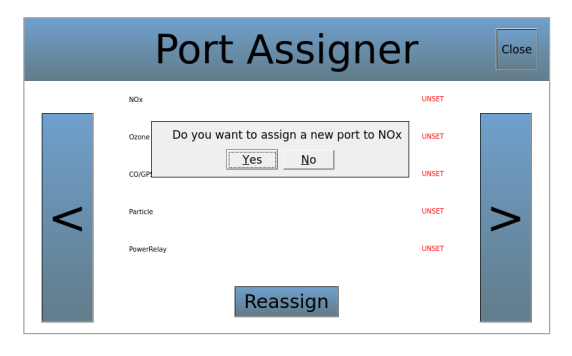
7. Repeat that step for all the devices.
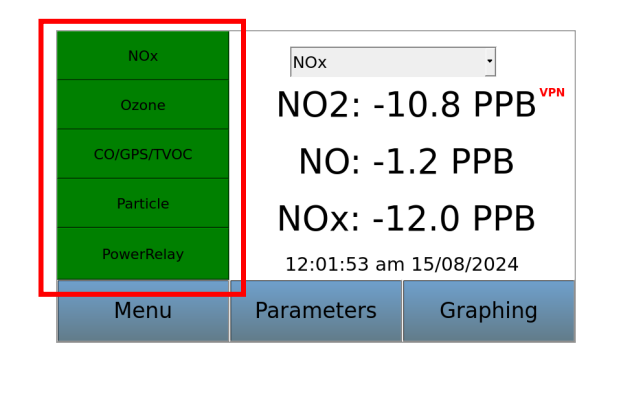
8. When you are done, all the devices should be set. Close out of all menus to get
to the main screen and make sure all of the devices are green.