![2BTech_FavIcon-WHITE-OUTLINE.png]](https://kb.2btech.io/hs-fs/hubfs/2BTech_FavIcon-WHITE-OUTLINE.png?height=1412&name=2BTech_FavIcon-WHITE-OUTLINE.png)
Technical Note No. 53
Procedure for Updating a Personal Air Monitor (PAM) Firmware Version
in Stand-Alone PAMs or for the PAM Sensor Package in an AQLite
Date: 8 April 2025 (update of 23 July 2024 and 11 August 2023 versions)
Author: Austin Bailly
Summary:
This is the process for updating the PAM board (either as the stand-alone PAM, or as
the sensor package in an AQLite). If for some reason a customer needs to update their
PAM, or production is putting the new firmware on new PAMs, this will walk through
how to do that. Note, the photos here show the stand-alone PAM. Follow analogously
for an AQLite.
In order to use this procedure, you must first contact 2B Technologies. Please do not proceed unless you have done that.
Required Software:
• Drivers (Windows Only)
(https://www.silabs.com/documents/public/software/CP210x_Windows_Drivers.zip)
• Drivers (Mac Only)
(https://www.silabs.com/documents/public/software/Mac_OSX_VCP_Driver.zip)
• Python (https://www.python.org/downloads/)
• Firmware binary provided by 2B Technologies
• Tera Term (https://2btech.io/wp-content/uploads/software/teraterm-4.105.zip)
Required Hardware:
• Computer with above software installed
• USB-C cable compatible with computer
• 2B Technologies Personal Air Monitor (PAM)
Install Required Software:
Installing Python and esptool package for python:
1. First, download and install the appropriate version for your system using link:
https://www.python.org/downloads
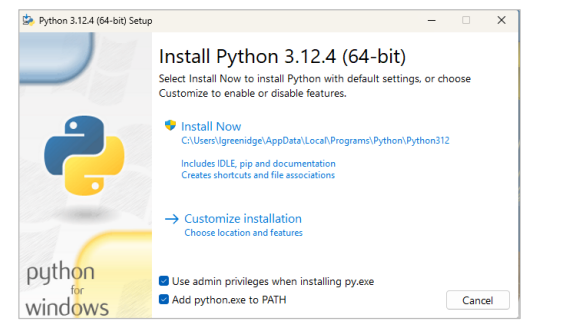
2. Note when going through the installation process, at the beginning of installation,
there will be an option to add Python to your PATH. Check this box.
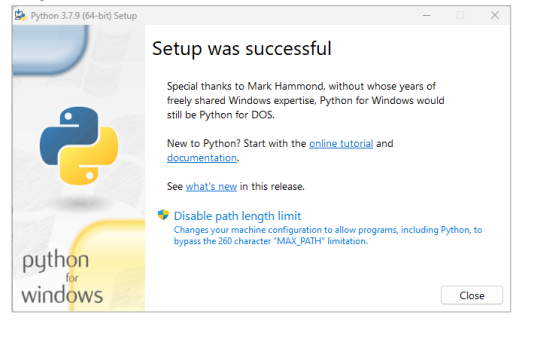
3. At end of installation, the Python installation may have an option to disable PATH
length limit. If it is there, click the box.
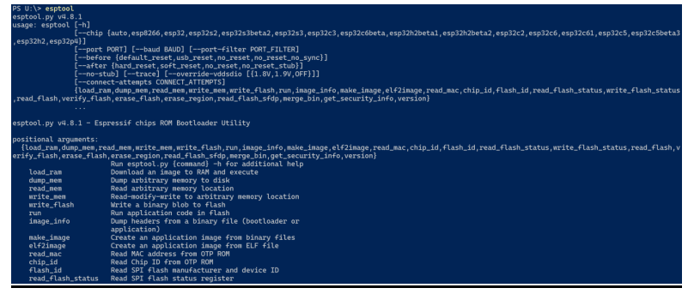
4. Open windows powershell, entering this command (note you may need to restart
your machine for python to fully install before this command will work):
- pip install --upgrade esptool
If you receive this prompt after entering esptool in the command line, you have
successfully installed Python and the package esptool:
5. Using link https://2btech.io/wp-content/uploads/software/teraterm-4.105.zip, install Tera
Term following the prompts given.
6. If you are on Windows, download and install drivers from this link. There are
instructions in the download folder explaining how to install them.
https://www.silabs.com/documents/public/software/CP210x_Windows_Drivers.zip
7. If you are on Mac, download and install drivers from this link. There are instructions
in the download folder explaining how to install them.
https://www.silabs.com/documents/public/software/Mac_OSX_VCP_Driver.zip
8. Reach out to 2B Technologies with your concerns/ issues, and firmware can be
sent to you for this process.
Procedure:
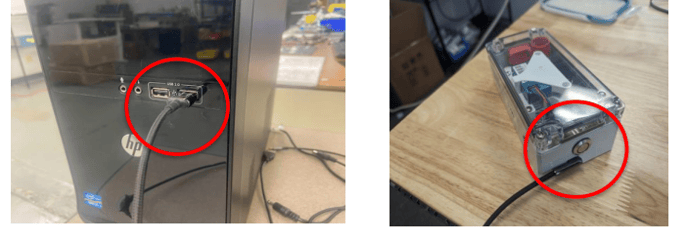
1) Plug the PAM device into the computer. Ensure that the USB A side of the
cable is connected to a USB port in the computer and the USB C side of the
cable is plugged into the PAM.
2) Open the Tera Term application on the computer.
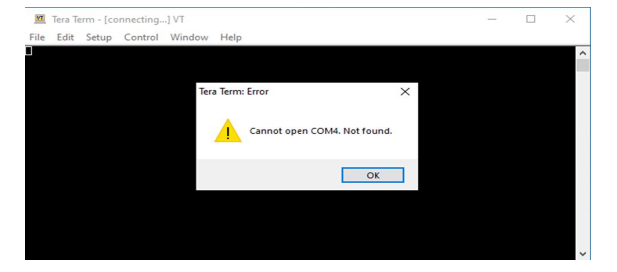
3) Select OK if the Tera Term: Error message appears.
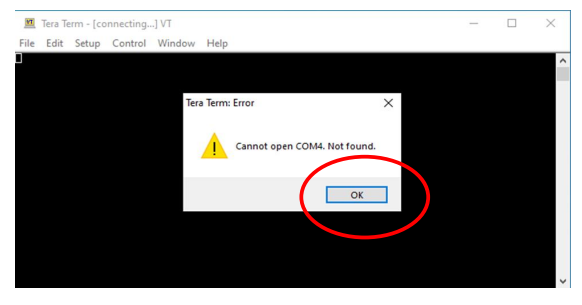
4) Locate the menu options on the top of the Tera Term screen. Go to Setup ->
New Connection. A new screen should appear on top of the Tera Term
screen.
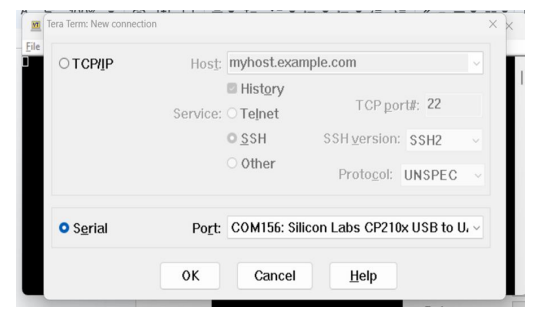
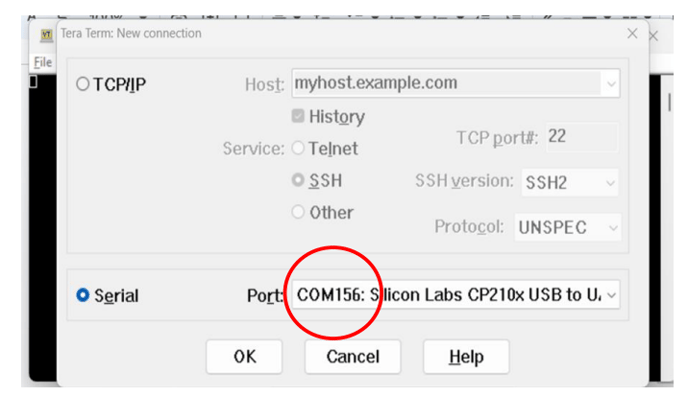
5) Locate the Serial section of the menu and find the COM port. For example, this
computer has COM156 connected to the PAM. Find the COM port assigned to
the PAM and remember the number. It will be used in later steps.
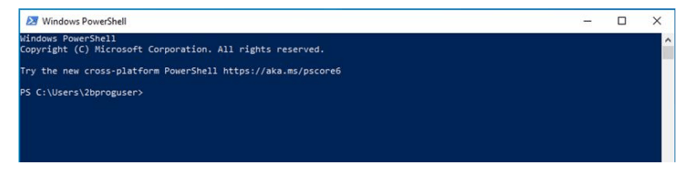
6) Open up the Windows PowerShell application.
7) Open up file explorer.
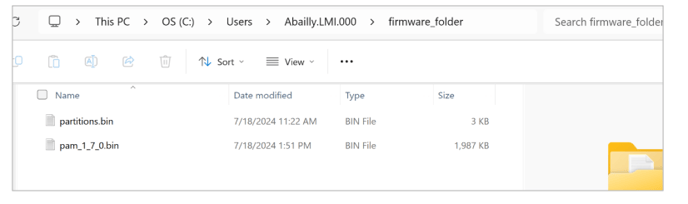
8) Find where the new PAM or AQLite version and partition file are located. For
example, on this computer the file is located at “C:\Users\Abailly.LMI.000\firmware_folder”.
9) Go back to powershell. In the console, type the following text:
esptool --chip esp32 --port "COMXX" --baud 460800 write_flash -u --flash_size
detect 0x8000 partitions.bin 0x10000 firmware.bin

10) Take the COM number saved from step 5 and replace the XX in COMXX with
that COM number.
11) For reference, below is a printing out of an example command that will program
your PAM/ AQLite. The parts bolded and italicized will need to change to match your system.
esptool --chip esp32 --port "COM66" --baud 460800 write_flash -u --
flash_size detect 0x8000
"C:\Users\Abailly.LMI.000\AQLite_Update\partitions.bin" 0x10000
"C:\Users\Abailly.LMI.000\AQLite_Update\firmware.bin"
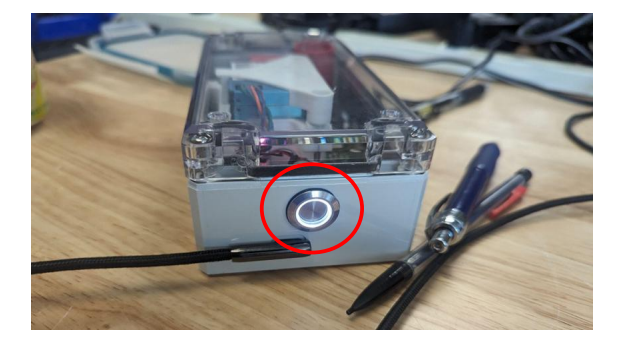
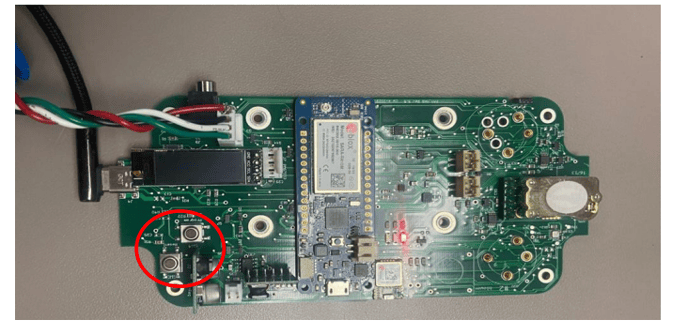
12) Turn on the PAM device by pressing down the button (shown in the next picture).
13) In Powershell, press enter. A line will appear that says “Connecting”.

14) Locate the two buttons toward the bottom of the PAM device. Below are two
pictures, one with the PAM in its enclosure, one without enclosure to help find
the buttons:
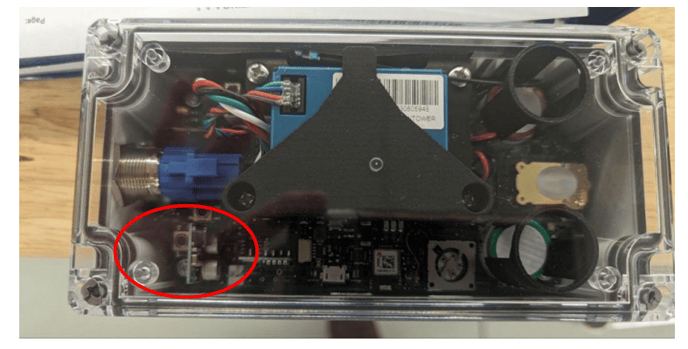
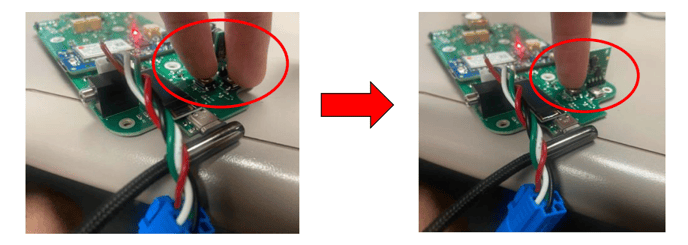
15) While powershell displays the “connecting” line, press down on the two
buttons, wait a few seconds, then lift up the finger closest to the edge, wait a
second, and pull off the final finger.
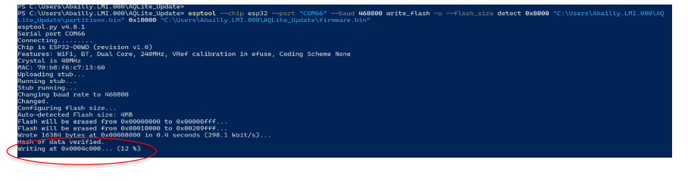
16) If done correctly, information should begin to appear in Powershell. At the
bottom, a loading percentage should appear, wait for it to reach 100%.
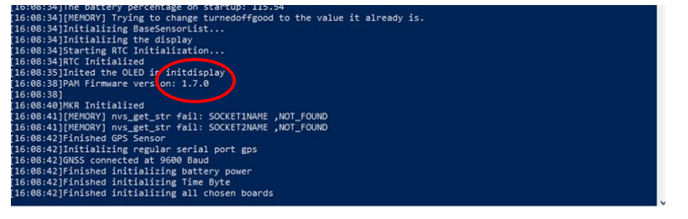
17) After it finishes loading, a PAM Firmware version should appear. Make sure the
PAM version is the desired one. In this case it is 1.7.0
18) If the PAM version that appears in Powershell is the intended one, then you are
done. If it didn’t work, retry the steps and double check that all information is
entered properly.