![2BTech_FavIcon-WHITE-OUTLINE.png]](https://kb.2btech.io/hs-fs/hubfs/2BTech_FavIcon-WHITE-OUTLINE.png?height=1412&name=2BTech_FavIcon-WHITE-OUTLINE.png)
Technical Note No. 036
Procedure for Logging and Reading Data via the SD Card
Date: 1 November 2016
Author: Brian Carpenter
Update by: Peter Andersen, Chris Ennis
Requirements
1. 2B Technologies Inc. Ozone Monitor with SD card capability
2. Standard size SD memory card (not micro SD)
3. Transcend USB SD card reader or equivalent SD card reader
4. Computer with USB port
Background
The SD card option is an additional and completely separate way to log measurement
data other than the internal memory of the instrument and has the capacity to log for over
1 year. Both the internal logger and the SD logger can run simultaneously without
affecting each other.
When an SD card is inserted, the instrument automatically starts storing data. Like the
internal logger, the SD logger must fill up a small buffer (5 to 8 data lines depending on if
external inputs are on or off, or if GPS is used) in order to write data to the memory. This
means that if power is lost before the buffer is filled, you may lose up to 5-8 data lines. In
order to avoid losing data, be sure to enter the SD menu under the Dat menu and save the
file before ejecting or powering your instrument off. Each time the instrument power is
turned on, a new file is created. There is a limit of 250 files on one card.
Procedure
1. Make sure the SD card is formatted to FAT32 before using. For a PC, right click on the
SD card and select “properties” and then “format” to view the format setting/file system
of the SD card. If necessary, reset the formatting by going under the “Manage” menu
and selecting “Format.”
2. Gently insert an SD card into the instrument via the slot on the front panel until you
notice it “click” into place. The instrument can be either on or off.
3. Every 5 to 8 data points, the data will be saved to a file on the card.
4. Before powering down or ejecting the card, Save the data file to the SD card by
following these steps:
A. Hold down the select switch knob until the menu appears on the screen of the
instrument.
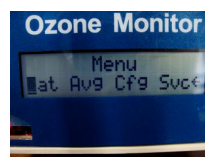
B. Scroll over to “Dat” and push down the select switch to enter the “Data Menu."
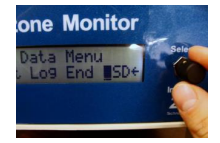
C. Scroll over to “SD” and push down the select switch to enter the “SD Menu.”
D. Select “Yes” when the screen reads “Save SD file?”.
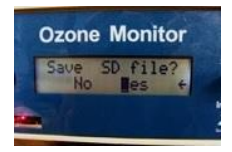
→ Pushing “Yes” will save all the data to the file onto the 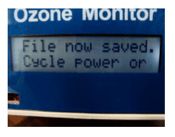
SD card and the instrument can be powered off or the card
can be ejected without losing data.
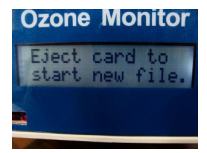
E. On the following screen you should now read “File now saved. Cycle power or Eject card to start new file.”
F. To start a new file, either cycle the instrument power or eject and reinsert the card.
5. To access the logged ozone data on your SD card:
A. Gently push in the card until you notice it “click”, then remove it by gently
pulling it out.
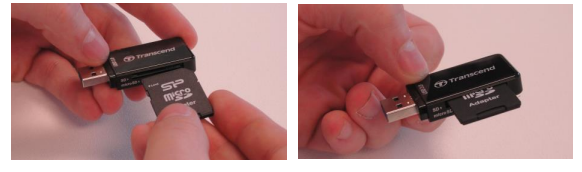
B. Insert SD card into the provided Transcend USB SD Card Reader.
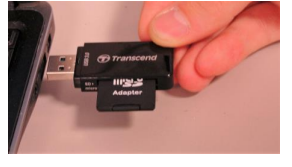
C. Insert SD Card Reader into USB slot on computer.
D. The SD card should pop up on your computer screen as a “Removable Disk”
when inserted into the USB slot. When the notification comes up on your computer screen click on the option to “Open folder to view files”.
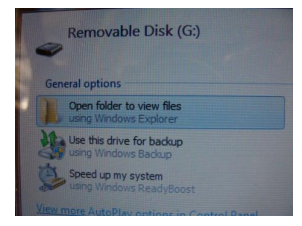
→If you do not see a pop up notification similar to the image, you do not have
“AutoPlay” pop-up notifications enabled. However, you can still access the card via “My Computer”.
E. In the “Removable Disk” drive folder you will see a minimum of two files which
contain the logged ozone data measurements.
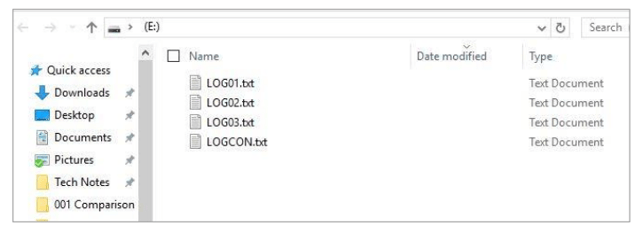
i. Ignore the file “LOGCON,” which is just a configuration file for the SD card. This file should not be modified or deleted.
ii. If you have saved the file via the SD card submenu on your ozone monitor, your measurement data should appear in a file similar to “LOG01.”
iii. If you did not save data to a new file and have run the instrument with the SD card inserted for over ten data points, the instrument will automatically start logging data to a file similar to “LOG01.”
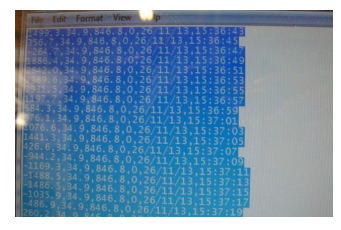
F. Click on the file to access the logged data on your SD card. You can then copy and paste the data into the desired data management software, such as Microsoft Excel.