![2BTech_FavIcon-WHITE-OUTLINE.png]](https://kb.2btech.io/hs-fs/hubfs/2BTech_FavIcon-WHITE-OUTLINE.png?height=1412&name=2BTech_FavIcon-WHITE-OUTLINE.png)
Technical Note No. 067
How to Replace the AQSync Software Disk
Date: 2/6/2025
Authors: Luke Greenidge and Lupita Ortega
Summary:
This tech note shows how to replace the AQSync software disk in both a hinged and
fixed UI display. Please contact support@2btech.io for further questions or support
regarding this procedure.
Tools/Materials Needed
Tweezers
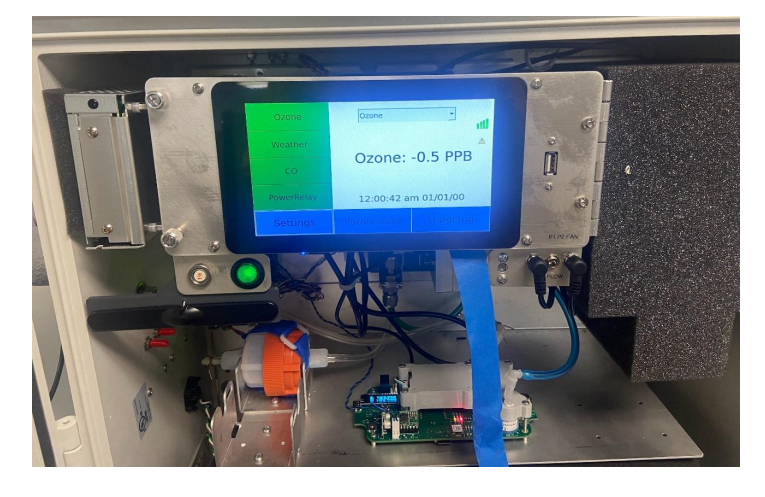
Procedure for Hinged Faceplate:
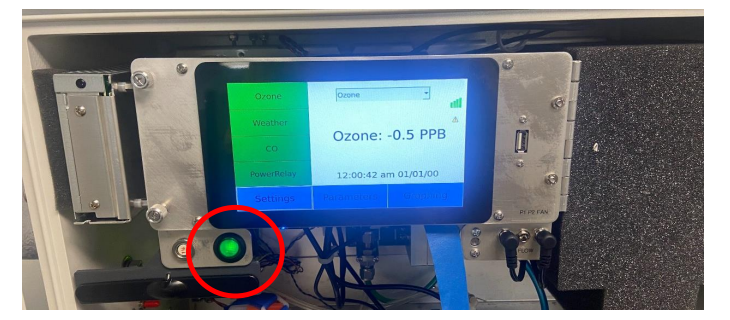
1) Turn off the AQSync by pressing the green button on the front of the device.
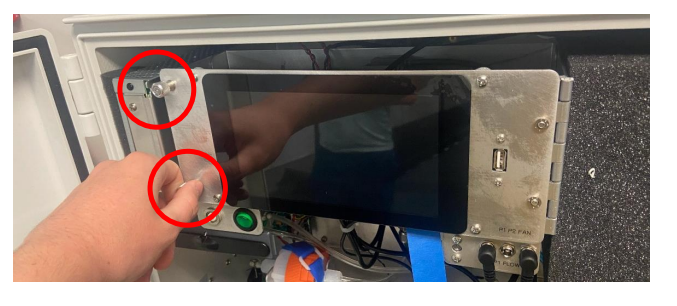
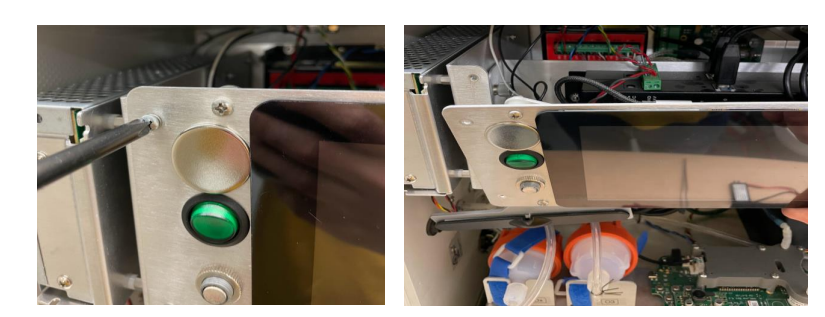
2) Unscrew the two captive screws on the left side of the front panel to open the device
3) Locate the SD card in the raspberry pi.
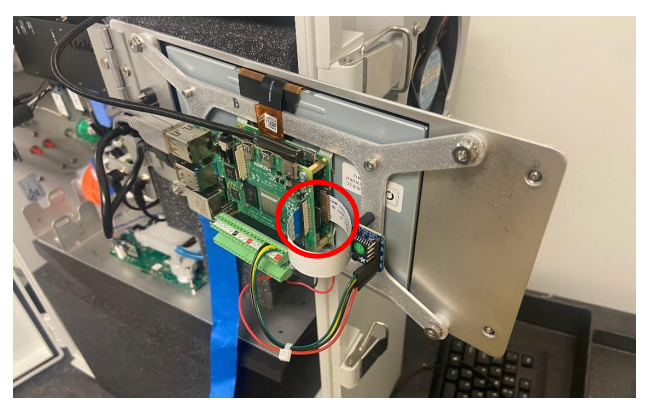
4) Remove the SD card from the raspberry pi. Take note of the orientation of the SD card.
This will be important when putting the new SD card in.
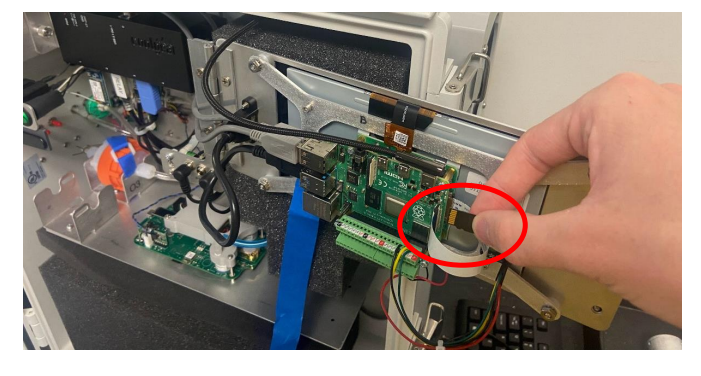
5) Obtain a new SD card and locate the slot where the previous SD card was placed.
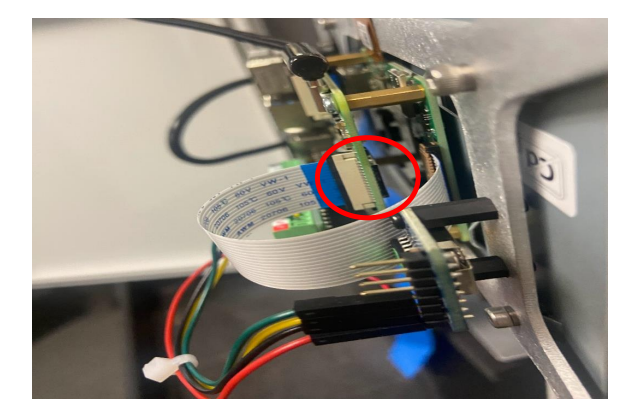
6) Put a new SD card in the slot using the same orientation as the previous SD card
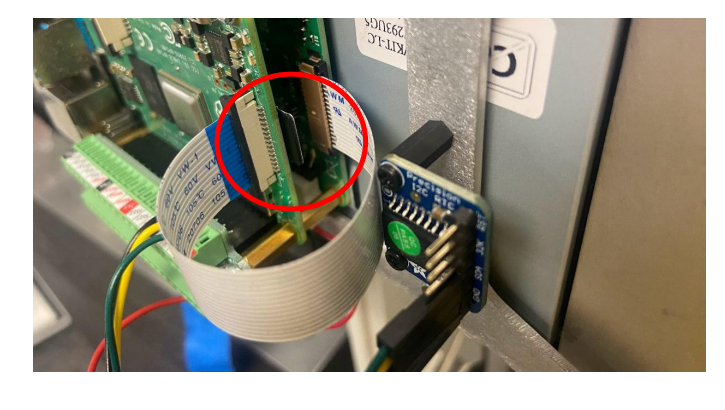
7) Close and screw the panel back in.
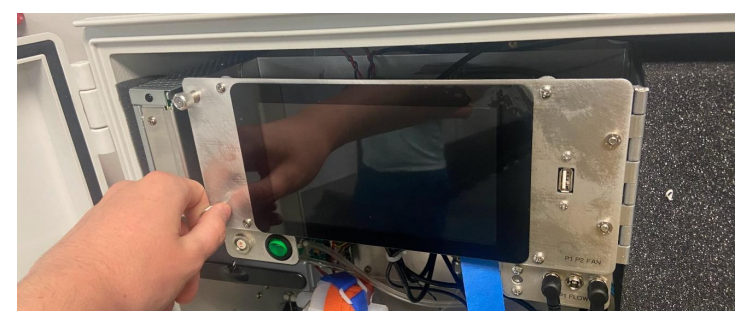
8) Turn the device back on to ensure proper operation. If the devices on the left side are
not green, Technical Note No. 64 named “AQSync Port Assigner Instructions” must be
followed for the devices to output in the new software.
Procedure for Fixed Faceplate:
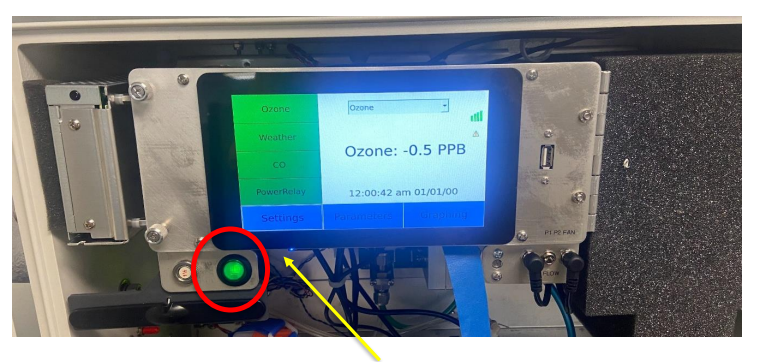
1) Turn off the AQSync by pressing the green button on the front of the device.
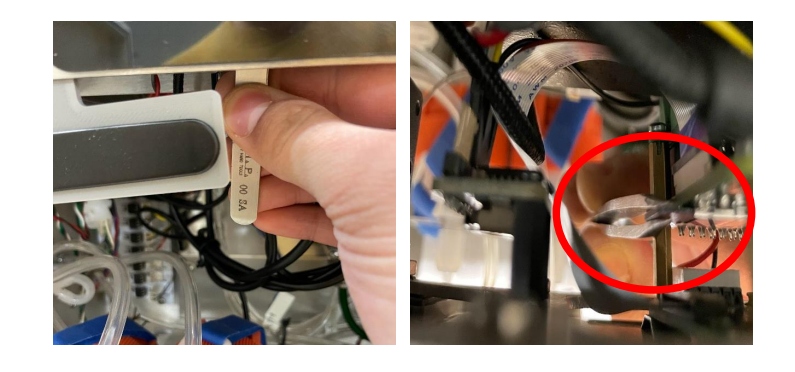
 2) Locate the SD card (on the back of the left side of the touchscreen). Use tweezers to
wiggle the SD card out of the slot
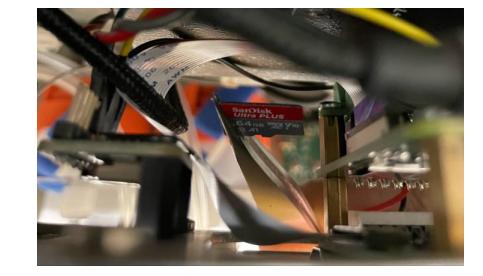
3) Replace the SD card in the same way. It may be necessary to remove the four screws
that hold the faceplate to give more room to slide the SD card back in. Replace screws
after SD card is inserted.
4) Turn the device back on to ensure proper operation. If the devices on the left side are not green, Technical Note No. 64 named “AQSync Port Assigner Instructions” must be followed for the devices to output in the new software.