![2BTech_FavIcon-WHITE-OUTLINE.png]](https://kb.2btech.io/hs-fs/hubfs/2BTech_FavIcon-WHITE-OUTLINE.png?height=1412&name=2BTech_FavIcon-WHITE-OUTLINE.png)
Technical Note No. 061
Choosing a Network Operator for the AQLite or AQSync RUT-241 Router
Date: 12 August 2024
Author: Austin Bailly
This procedure will work to mitigate poor cell reception or cellular towers that constantly
kick your instrument off their network.
Note: Currently, 2B Technologies does not have the ability to connect to Verizon towers.
If a Verizon operator is chosen, the RUT-241 will not be able to connect to cell.
Summary:
This is the process for choosing a network operator in your local area for the RUT-241
router in your AQLite or AQSync.
Required Hardware:
• A computer that connect to ethernet/ WiFi
• If using an AQLite: #2 Philips Screwdriver
Initial Steps: Obtaining the Router Information
If using an AQLite
• Disconnect all power to the AQLite.
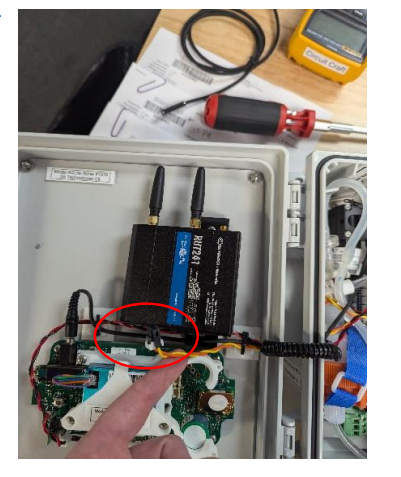
• Disconnect all power to the RUT
(small yellow and orange cable).
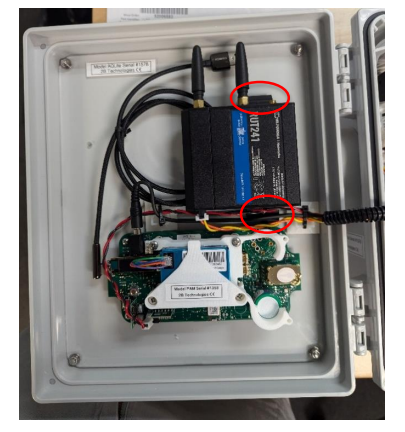
• Using a #2 Philips Head Screwdriver, unscrew the two screws holding the
RUT in place on the door.
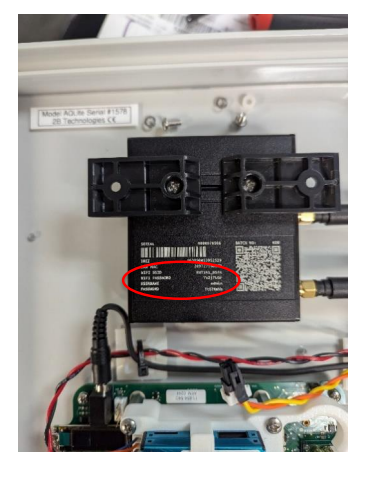
• Turn over the AQLite and take a picture. The important information on the back of
the RUT is the WIFI SSID, WIFIPASSWORD, USERNAME and PASSWORD.
• Follow the disassembly instructions backwards, re-connect the RUT to the
back door plate and connect the power cable for the RUT.
If using an AQSync:
• Contact techsupport@2btech.io to get the Wi-Fi information and admin password
for your RUT-241 router. Please provide the serial number of your AQSync in
your message to us.
Procedure:
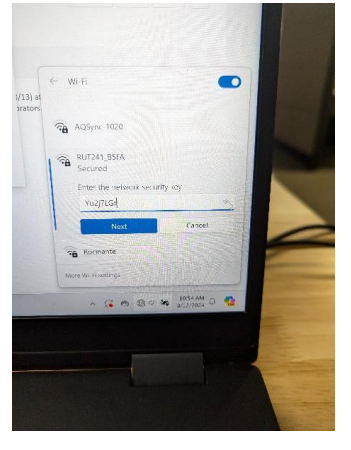
1. Turn on the AQLite or AQSync, and look for the WiFi SSID obtained from the Initial
Steps to appear on your computer.
2. Once it appears, enter the WiFi PASSWORD obtained from the Initial Steps, and
connect to the RUT.
3. Once connected, open a browser and type into the URL bar at the top 192.168.1.1.
An example of the screen that should appear is below.
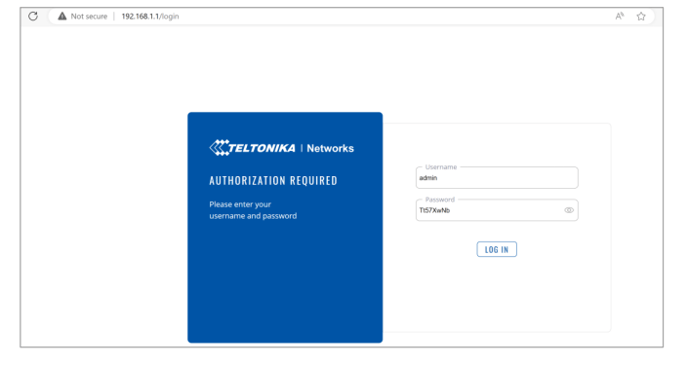
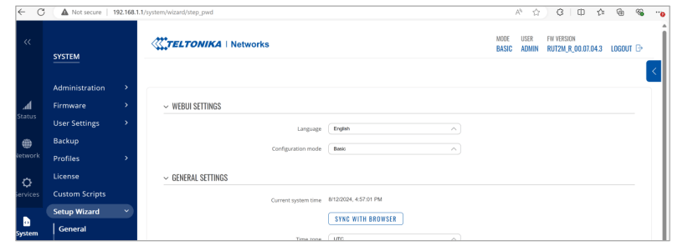
4. Type in the USERNAME and PASSWORD obtained from the Initial Steps and click
Login. After successfully logging in, a screen example of what should appear is
below.
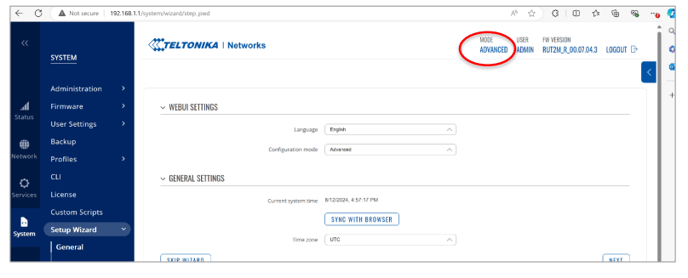
5. Click on the option Mode to switch the interface to the ADVANCED mode.
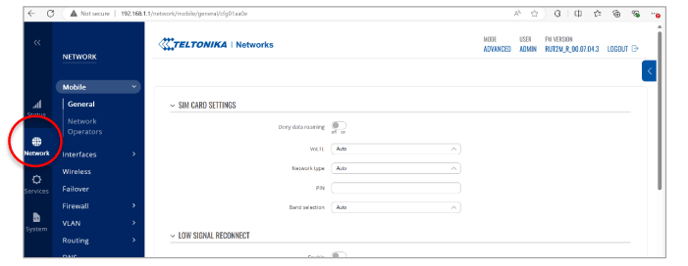
 6. On the left side navigation bar, choose the Network option.
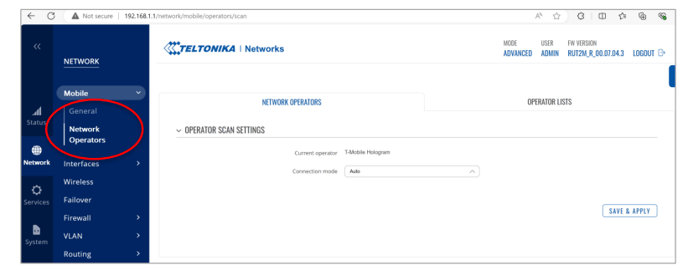
7. On the left Navigation Bar, Choose Networks Operators under Mobile.
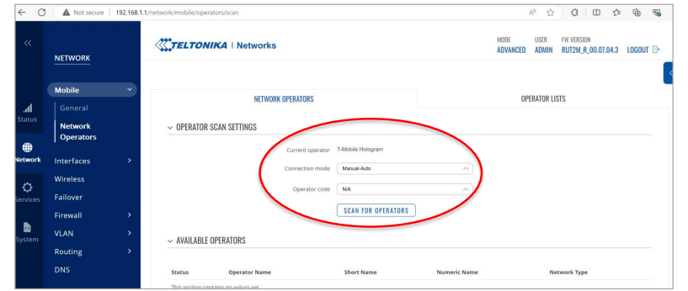
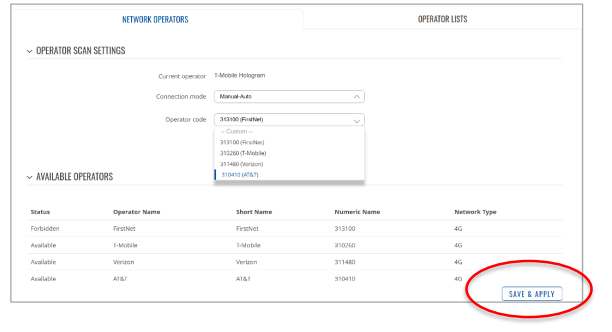
8. Change the connection mode to Manual-Auto, which will make the SCAN FOR
OPERATORS option appear. Click on it.
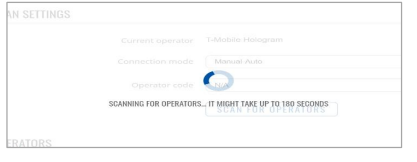
9. A prompt will pop up while the router searches for available operators in your area. Wait until
the prompt leaves. Note this could take while (should be done within 5 minutes).
10. From the list of operators, choose one that may work in your area (Note 2B
Technologies does not have a contract with Verizon at this time. If Verizon
is chosen, the router will not connect to cell).
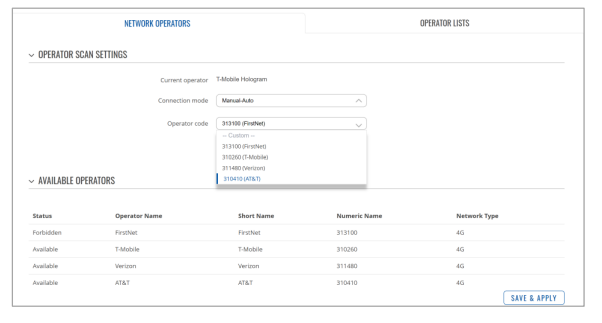
11. After choosing the desired operator, click SAVE & APPLY and wait 1 minute.
After this minute, the router will restart on its own. If the operator chosen is a
valid one, the router will connect to cell, and your instrument will be able to send
data via the router.
12. Note this does not mean your instrument will upload immediately. Wait the
normal amount of time for the instrument to upload. If it does not, that means the
operator chosen is not working. Go through the steps again and choose a
different operator. If no individual operator works, reset the connection mode
back to Auto and contact techsupport@2btech.io.