![2BTech_FavIcon-WHITE-OUTLINE.png]](https://kb.2btech.io/hs-fs/hubfs/2BTech_FavIcon-WHITE-OUTLINE.png?height=1412&name=2BTech_FavIcon-WHITE-OUTLINE.png)
Technical Note No. 54
Procedure for Connecting a Personal Air Monitor (PAM) to Wi-Fi.
Date: 17 August 2023
Author: Colin Daugherty
Summary:
This is the process for connecting a PAM device to wifi. If a customer wants to connect
a PAM device to wifi and is unsure on how to do it, this will walk through how to do that.
Required Software:
• Tera Term (https://twobtech.com/teraterm-4.100.exe)
• Drivers (Windows Only)
(https://www.silabs.com/documents/public/software/CP210x_Windows_Drivers.zip)
• Drivers (Mac Only)
(https://www.silabs.com/documents/public/software/Mac_OSX_VCP_Driver.zip)
Required Hardware:
• Computer with above software installed
• USB-C cable compatible with computer
• 2B Technologies Personal Air Monitor (PAM)
Install Required Software:
1. Using link https://twobtech.com/teraterm-4.100.exe, install Tera Term following the
prompts given.
2. If you are on Windows, download and install drivers from this link. There are
instructions in the download folder explaining how to install them.
https://www.silabs.com/documents/public/software/CP210x_Windows_Drivers.zip
3. If you are on Mac, download and install drivers from this link. There are instructions
in the download folder explaining how to install them.
https://www.silabs.com/documents/public/software/Mac_OSX_VCP_Driver.zip
4. Reach out to 2B Technologies if you have any concerns/ issues.
Procedure:
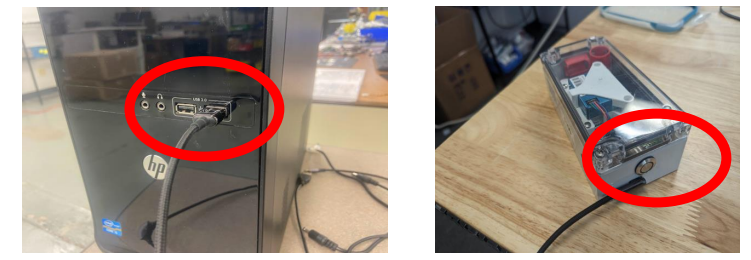
1) Plug the PAM device into the computer. Ensure that the USB side of the cable is
connected to a USB port in the computer and the USB C side of the cable is
plugged into the PAM. Turn on the PAM device by pressing the circular button on
the side of the device.
2) Open the TeraTerm application on the computer.

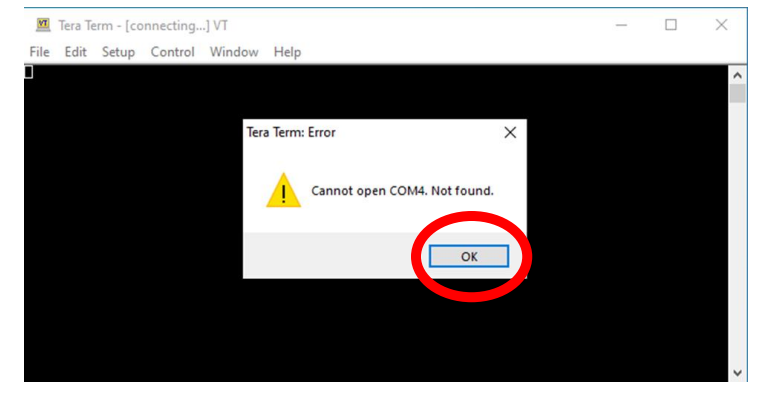
3) Select ‘OK’ if the Tera Term: Error message appears.
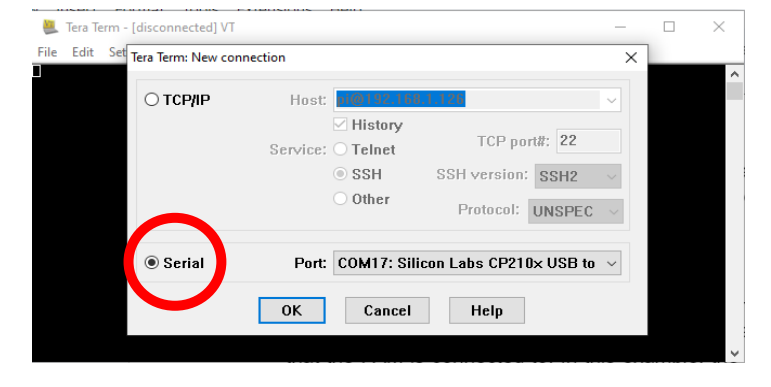
4) Locate the menu options on the top of the TeraTerm screen. Go to File-> New
Connection. A new screen should appear on top of the TeraTerm screen. Locate
the ‘Serial’ section at the bottom of the pop up. Make sure that the connection is
set to serial. This is indicated by the black circle to the left of the word “serial”.
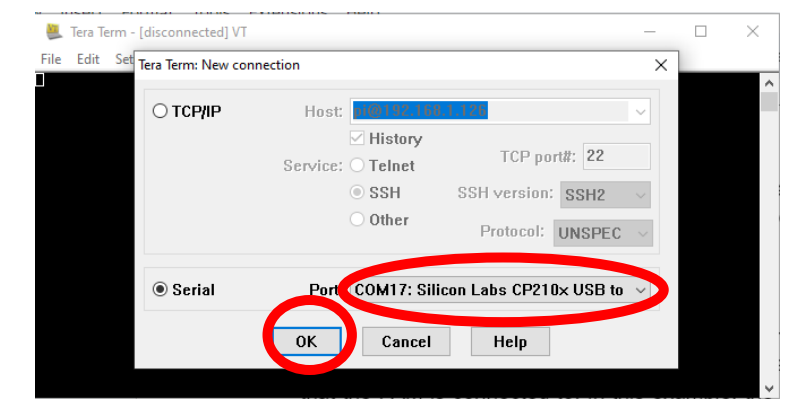
5) Locate the port dropdown menu. Set the COM port to the one that has the words
`Silicon Labs’. This indicates that the port is the one connected to the PAM. In
this example, COM 17 contains the words ‘Silicon Labs’ so it is the selected port.
Once done, select ‘OK’ at the bottom of the screen.
6) Go to Setup->Serial Port. Locate the ‘Baud rate’ section of the setup menu. Open
up the dropdown menu. A list of baud rates will appear. Set the baud rate to
115200. This is the baud rate that the PAM devices connect to.
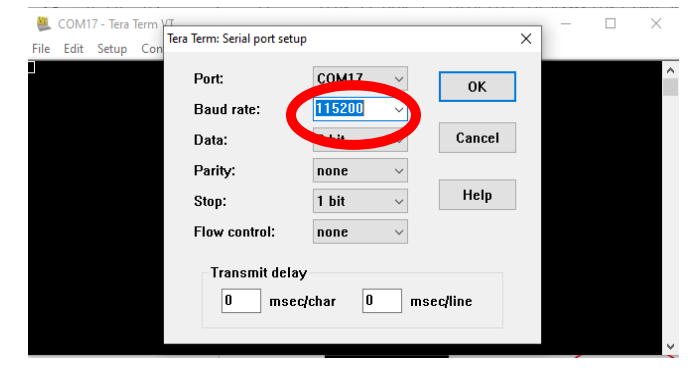
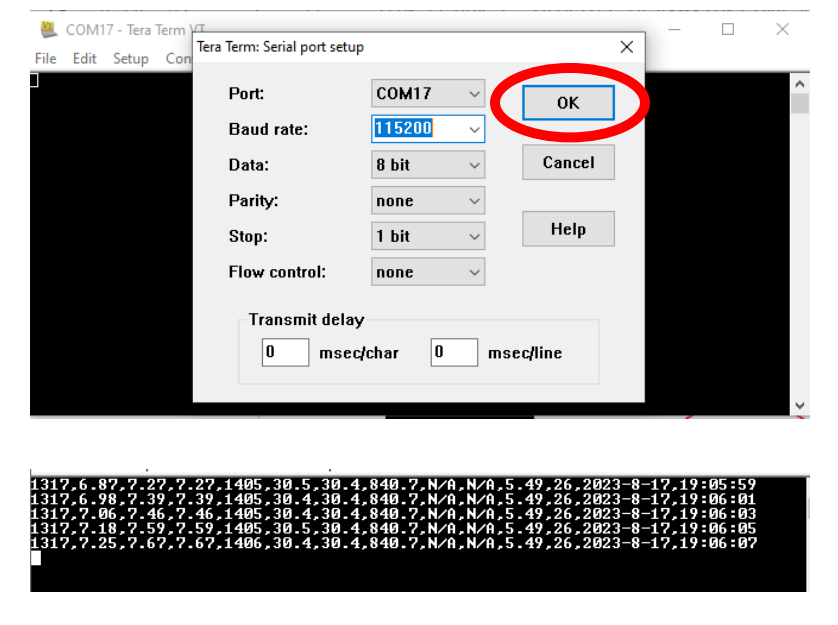
7) Once the baud rate is set, select ‘OK’ on the right hand side of the screen. The
PAM device should connect to TeraTerm and begin outputting data.
8) In TeraTerm, type the letter ‘m’. This will open the serial menu which contains a
series of settings that can be changed. Press ‘?’ and press enter to open a list of
all actions in the menu.

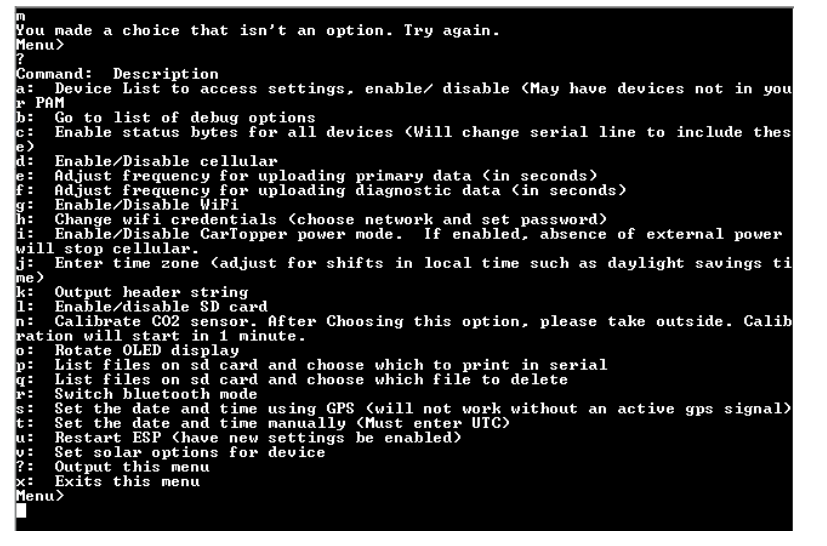
9) In the menu, type ‘g’ and press enter. If wifi is disabled on the PAM, doing this
will enable it. If wifi is enabled on the PAM, doing this will disable it. Make sure
that wifi is enabled.

10) In the menu, type ‘h’. This will open the wifi credentials setting. This changes
the wifi network that the PAM device is connected to. A question will appear
asking “Are you sure you would like to change the wifi credentials?”. Type ‘y’
and press enter.

11) A list of available networks will appear. Type the number in front of the desired
network in the menu to select a network and press enter.
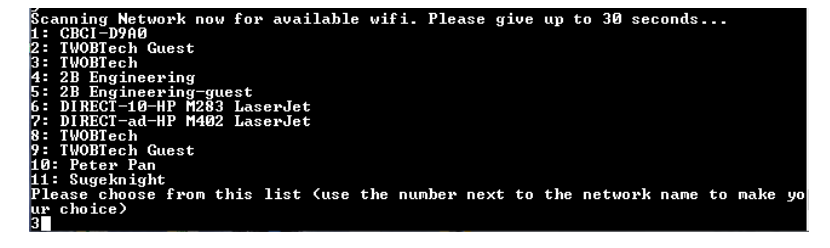
12) A prompt will appear asking for the password to the wifi. Enter the wifi
password and press enter.

13) If done correctly a message will appear saying “Successfully connected to the
wifi network!”

14) If the PAM doesn’t successfully connect to wifi, retry the steps and ensure that
all information is entered correctly.