![2BTech_FavIcon-WHITE-OUTLINE.png]](https://kb.2btech.io/hs-fs/hubfs/2BTech_FavIcon-WHITE-OUTLINE.png?height=1412&name=2BTech_FavIcon-WHITE-OUTLINE.png)
Technical Note No. 052
Procedure for Configuration and Use of Serial Bluetooth “Needenr Wireless”
Adapters
Date: 1 June 2022
Author: Craig Williford
Requirements
• 2 sets of Neendenr Wireless devices
(available, for example, from Amazon: Neendenr Wireless Amazon)
• 1 Null modem adapter
• 2 Female-to-Female gender changers
• “SetParam” software [zipped folder on 2B Tech server] (if configuration is required)
Applications: most 2B Technologies Instruments
Procedure
I. Configure “Master” Bluetooth device that will be connected to the 2B
Tech instrument’s serial output (DB9). *This step may not be needed if
already done by 2B Technologies. Only needs to be done on new device or if
needed to change settings. Do not do this if already setup by 2B Technologies!
a. Plug the power supply into the Neendenr device you will be using as the
“Master”.
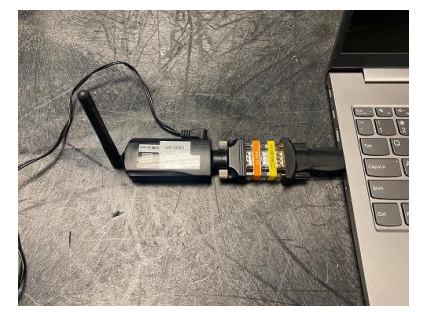
b. Connect the null modem adapter between the device and the computer
(USB to Serial adapter or direct to serial port).
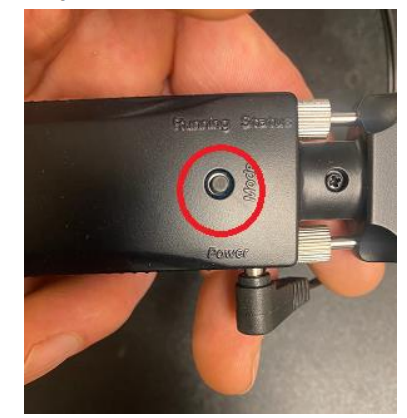
c. Press the small button labeled “Mode”. This will enable the device to be
configured using the “SetParam” software.
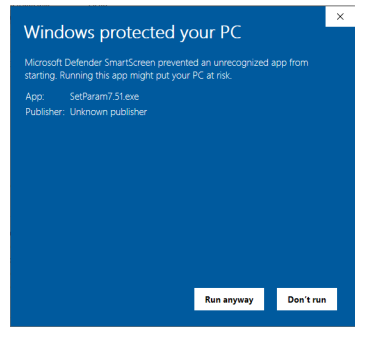
d. Open the SetParam Software. The first time it is used, you may see the
Microsoft Defender Smartscreen pop up. Press “More info” and then “Run
anyway” to continue running the configuration software.
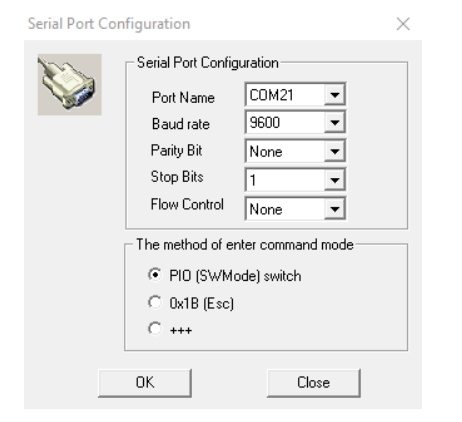
e. Select the COM port that is associated with either the USB-Serial adapter
that is being used to connect to the Bluetooth device or the serial port. This
can be determined by going into the device manager in the control panel of
the computer using for the connection.
f. Select 9600 for the Baud rate, None for parity, 1 stop Bit, and None for Flow
control.
g. Press the “OK” button.
h. If the correct port is set and the correct baud rate is set and the device
“Mode” button was pressed to put it into the correct mode, you should
automatically get a connection and the fields should populate. If not, try to
press the “Mode” button again or check that the COM port is correct. The
red light should be illuminated, and the green light should NOT be blinking.
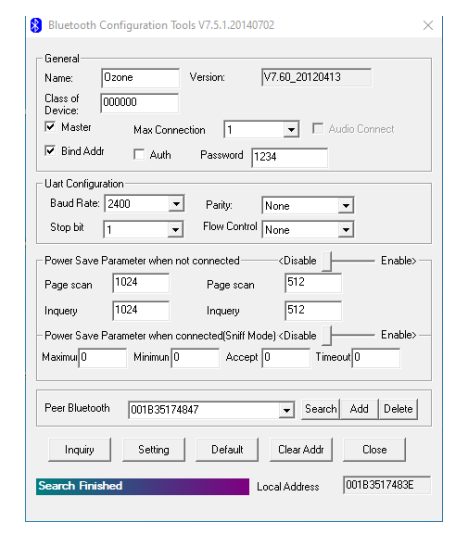
i. Make sure that “Master” is checked, “Bind Addr” is checked, the Baud Rate
is set to 2400 or whatever the instrument baud rate is set to that you are
connecting to.
j. Copy down the “Local Address” string that is shown in the configuration on
your screen (example: 001B3517483E). This will be used to put into the
“Peer Bluetooth” field on the Slave device during configuration. If you
already know the Local Address of the Slave device’s, enter it into the “Peer
Bluetooth” field as shown.
k. Once all settings are made, press the “Setting” button. This will save the
settings for the next time it is turned on.
l. Press the “Mode” button again on the Bluetooth device to get it back into
normal mode. This is unnecessary if power cycling the device.
m. Remove the null modem adapter. It is not needed when connecting to the
instrument.
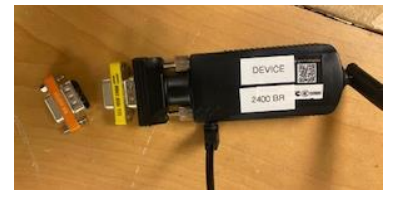
n. It is now configured to be used to act as a com port that will connect to the
slave device connected to a computer in Section III.
II. Configure “Slave” Bluetooth device that will be connected to the computer
collecting the data.
a. This step may not be needed if already done by 2B Technologies. Only
needs to be done on new device or if needed to change settings.
b. Follow the steps I.b through I.h to connect the device to the “SetParam”
software configuration tool.
c. Make sure that “Master” is NOT checked, “Bind Addr” is checked, the Baud
Rate is set to 2400 or whatever the instrument baud rate is set to that you
are connecting to.
d. Copy down the “Local Address” string that is shown in the configuration on
your screen (example: 001B3517483E). This will be used to put into the
“Peer Bluetooth” field on the Master device during configuration. If you
already know the Local Address of the Master devices from the previous
section, enter it into the “Peer Bluetooth” field as shown.
e. Once all settings are made, press the “Setting” button. This will save the
settings for the next time it is turned on.
f. Press the “Mode” button again on the Bluetooth device to get it back into
normal mode. This is unnecessary if power cycling the device.
g. Keep the null modem adapter connected. It is needed for connecting to the
computer as it will be the slave device always connected to a computer.
h. It is now configured to be used to connect to a computer and act as a com
port that will connect to the slave device connected to your instrument!
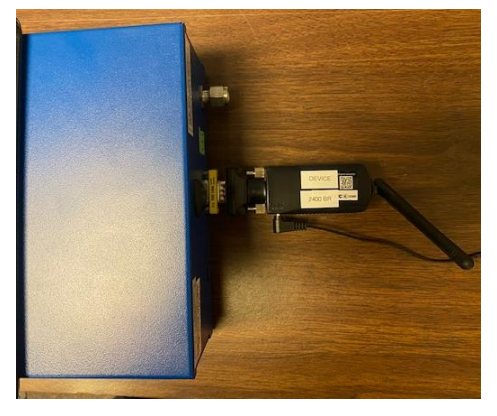
III. Connect the “Master” device to the DB9 serial connector on the back of the
2B Technologies instrument. Do NOT use the null modem adapter for this
connection, only the connection to the computer. Ensure that the instrument’s
baud rate is the same that the Bluetooth device has been set at.
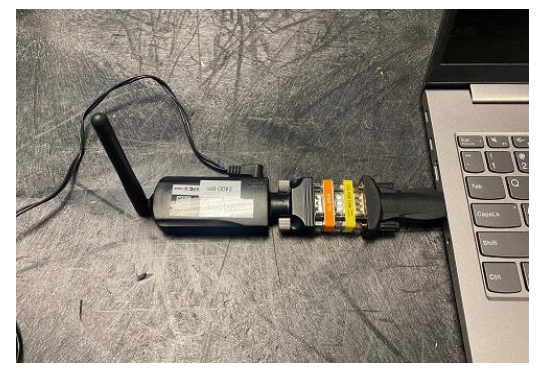
IV. Connect “Slave” Bluetooth device to computer. This needs the null modem
adapter as shown.
V. Now use Tera Term, the Data Display software from 2B Technologies, or any
other terminal emulator to connect to the COM port associated with the
device connected on the computer. Data should show up at the frequency that
the instrument is set at.